Table of Contents (click to expand)
When your internet randomly stops working, it is usually one of a few things: the router is overloaded or overheating, your ISP’s dynamic IP lease failed to renew, your Wi-Fi signal is fighting interference on a crowded 2.4 GHz channel, or buggy software is to blame. Restarting the router fixes most cases.
It has happened to all of us. We’re in the middle of an action-packed movie scene, trying to submit an assignment 5 minutes before the deadline, or are bracing for a critical penalty kick when everything on the screen freezes! That little icon in the corner (on a Windows desktop, say) flashes ‘No internet access’ and we feel the chill of doom!

Unless there is some catastrophic failure with the infrastructure setup of your ISP (internet service provider), there is an intuitive fix that we generally try that often works! We head for the router, check the bleeping light on the router, unplug it or switch off the button. We wait a few excruciating seconds and then re-plug it back or switch on the button again. Despite missing those crucial moments of an action-packed movie scene or a high-voltage penalty shootout, you’re at least back online, but why on Earth does it happen in the first place? Particularly when you can’t afford to miss the moment! To alleviate some of that frustration, let’s try to understand some of the science behind Internet disconnection.
Complexity Inside The Router
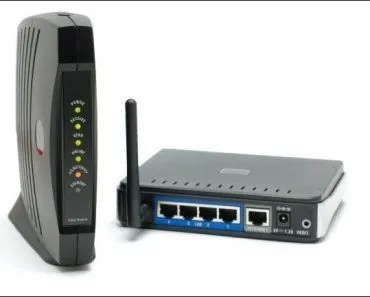
Although the router may appear to be just a simple box helping you access the Internet, the electronics inside the router are complex. Just like a normal computer, routers have their own CPU, memory, main PCB board, input-output devices, and operating system. All of these things help in managing the data traffic, but these components can get overloaded. Just like you can make your laptop slow down by opening dozens of browser tabs, streaming 4K video and playing high-intensity games all at the same time, pushing tons of data through multiple devices can similarly bog down your router, sometimes causing it to grind to a screeching halt.

Dynamic IP
Complicating the matter even further is that most ISPs hand out what are called dynamic IP addresses. An IP (internet protocol) address is like a street address that helps traffic on the internet find your device. Your ISP only loans you one of these addresses for a fixed stretch of time, known as a lease. Before the lease runs out, your router is supposed to quietly renew it, usually keeping the same address. The catch is that this handshake (governed by a protocol called DHCP) sometimes fails. If the ISP’s server is briefly unreachable or the network is congested when the lease expires, your router has to drop the old, expired address and go hunting for a brand-new one. Until it succeeds, you’re left without a working address, a bit like having your mail bounce because the post office hasn’t caught up with your new apartment yet!
Cramped Ventilation And Overheating
Just like any other electronic device, routers are susceptible to heat and their performance decreases when they become overheated. Your router might get overheated if it’s shoved in a cramped corner with the ventilation holes blocked by cables and other stuff in the vicinity. Also, if you don’t clean your router regularly, a lot of dust gathering on it might also block the ventilation holes of the router. Basically, your router needs to breathe to work properly. Make sure it’s not placed in a cramped corner that is overstuffed with cables and other accessories on every side.
Overcrowding And Interference
There are certain issues that aren’t necessarily caused by router malfunction. Most home internet connections are on Wi-Fi these days, which essentially operates on airwaves. These airwaves sometimes get overcrowded, especially if Wi-Fi is operating on the common 2.4 GHz frequency band, where noise comes from common household appliances, such as microwave ovens, baby monitors and even signals from other nearby routers. Signals on the same frequency can overlap with each other (called interference), making it difficult for your receiving devices (mobile device or computer) to hear what your router is trying to say (communicate) through the airwaves.
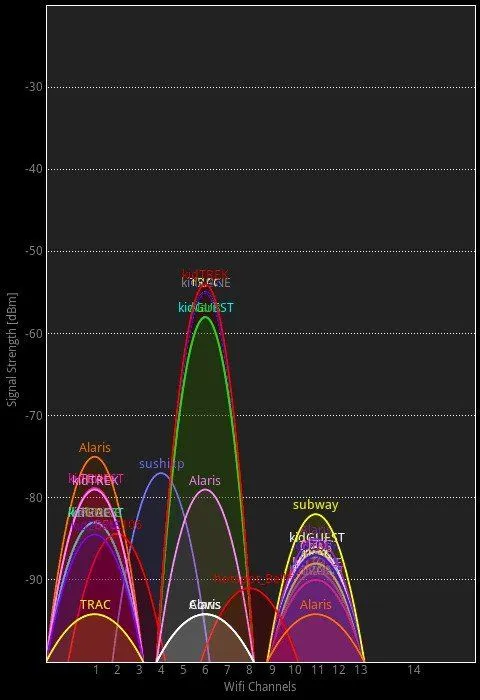
If this is the case, you can go to your router settings and change the channel (on 2.4 GHz, the non-overlapping channels 1, 6 and 11 are your best bet), or simply try switching from 2.4 GHz to a 5 GHz band, provided your router supports it. The 5 GHz band is far less crowded, since microwaves, Bluetooth gadgets and most baby monitors don't use it, though its shorter range means it doesn't punch through walls as well. Newer routers (Wi-Fi 6E and Wi-Fi 7) add a third option, the 6 GHz band, which offers even more elbow room and almost no interference from older devices, as long as both your router and your phone or laptop support it.
Software Problems
The problem of poor internet connectivity sometimes comes down to buggy software, a glitchy application or a misbehaving extension.
Running outdated software or drivers can also lead to hiccups in Internet connectivity. So make sure the device you’re using is on the latest version of its operating system. Sometimes uninstalling and reinstalling the Wi-Fi drivers is enough to fix the issue.
Interestingly, simply switching browsers may sometimes fix the Internet issue if the problem is not in the router’s hardware or due to airwave interference. This is because many times an extension, plugin or browser bug can choke your Internet access. One way is to switch to a different browser or try incognito mode to check if the Internet resumes working.
Also, if you’re using VPN (virtual private networks) to access blocked torrent sites, it can also mess up your connectivity. If you can access the Internet on other devices properly, or even on other browsers, a VPN plugin is likely to be the culprit for disrupting your smooth Internet connectivity.
References (click to expand)
- Networking Hardware: Routers. Florida Center for Instructional Technology, University of South Florida
- Dynamic Host Configuration Protocol (DHCP) Basics. Microsoft Learn
- Static IP Configuration - Windows 7. University of Colorado Boulder
- Wireless Communication and the Electromagnetic Spectrum. University of Washington
- Difference Between 2.4 GHz, 5 GHz, and 6 GHz WiFi. NETGEAR