Table of Contents (click to expand)
USB Type A is the standard rectangular connector on most PCs; Type B is the squarer plug used on printers and older peripherals; Type C is the small, reversible connector now used by almost every new phone, laptop, and tablet (including iPhone 15 and later). "Type" refers to the connector shape, while USB versions (2.0, 3.0, 3.2, 4) refer to data speed — from 480 Mbps up to 80 Gbps with USB4 v2.0. A single USB-C port can run any of these speeds, depending on the device.
It is safe to say that almost all electronic devices, including smartphones, laptops, tablets, desktops, Bluetooth speakers, and so on, rely on USB ports and cables for various functions.
But like any technology, USB or “Universal Serial Bus” (it’s quite a mouthful, isn’t it) has evolved a lot since its inception in 1996. As such, it is sometimes difficult and even overwhelming to understand and distinguish between terms like USB 3.0 vs. USB Type B. In this example, what does “Type B” mean exactly? How about “3.0”? What does that mean?
This article will discuss all you need to know about USBs. But before we get into USBs, let’s quickly talk about a term you will always hear along with USBs – USB port.
Understanding USB Ports
Most electronic devices have a port, i.e., where a USB cable gets plugged. That “place” or slot is called the port. As you can guess, this port allows USB devices to get plugged into the ‘host’ device.
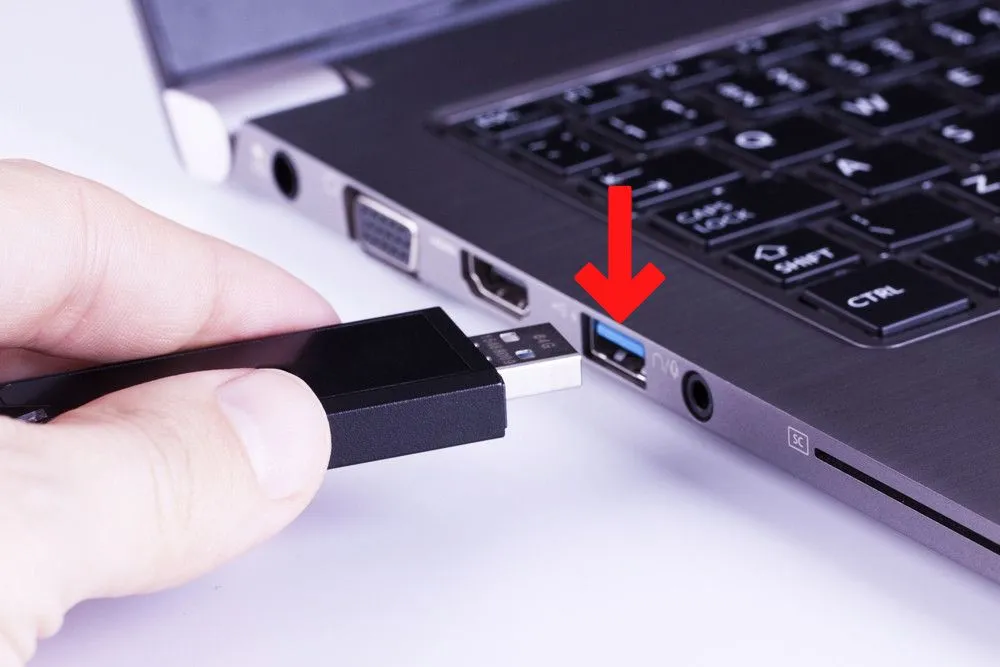
So, if you are transferring data from your phone to your laptop via a USB cable, you will plug the USB cable from your phone into the laptop’s USB port.
A USB (Universal Serial Bus) is a standard connection interface that enables communication between devices and a host controller such as a personal computer. It is most commonly used to connect peripherals such as mice, keyboards, printers, scanners, cameras, and flash drives to a computer.
Now that you understand a USB port, it’s time to jump into USB types.
USB Type A vs Type B vs Type C: At A Glance
Before we get into the details on each connector, here is the side-by-side view that answers most "A vs B vs C" questions in one look.
| Feature | USB Type A | USB Type B | USB Type C |
|---|---|---|---|
| Shape | Flat rectangle | Square, slightly slanted top corners | Small oval with rounded ends |
| Reversible? | No (only fits one way) | No | Yes (plugs in either way) |
| Where you find it | Desktops, laptops, TVs, wall chargers, USB hubs | Older printers, scanners, audio interfaces, some external drives | New phones (including iPhone 15 and later), laptops, tablets, headphones, game controllers |
| Max data speed | Up to 10 Gbps (with USB 3.2 Gen 2) | Up to 5 Gbps (USB 3.0 Type B variant) | Up to 80 Gbps (with USB4 v2.0) |
| Max charging power | About 7.5 W on standard ports | About 7.5 W | Up to 240 W with USB Power Delivery EPR |
| Status today | Still widely used on host devices | Largely obsolete on consumer gear | The new universal standard |
A quick rule of thumb: if a cable has different connectors on each end, the bigger flat one is almost always Type A (because it plugs into a computer, a wall charger, or a hub), and the smaller one is the connector for your device. The "device-side" connector is what has changed over the years, going from Type B to Mini USB to Micro USB to today's Type C. The European Union now requires USB-C on most small electronics sold in the EU, so the world has effectively standardized on Type C for the device end.
Types Of USBs (Based On Their Physical Design)
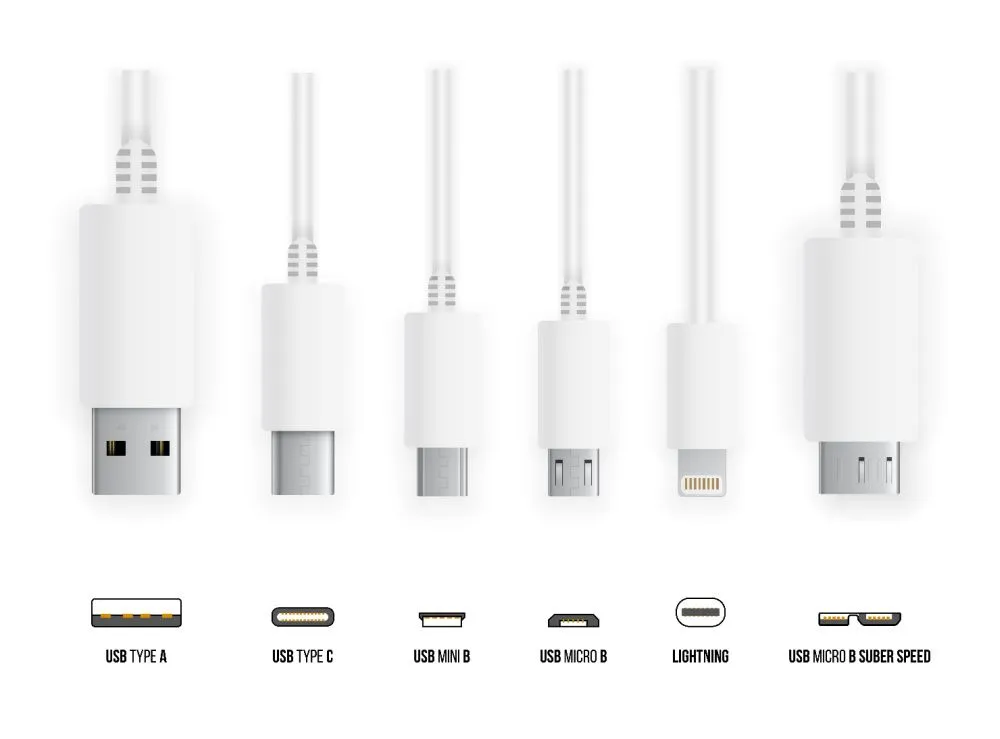
USB cables come in different shapes and designs. Therefore, based on their physical structure, they are classified as follows:
- USB Type A
- USB Type B
- USB Type C
- USB Mini (Mini USB A and Mini USB B)
- USB Micro (Micro USB A, Micro USB B, and Micro USB B Superspeed)
- Lightning cable (for Apple devices)
Here’s a picture to better understand different USB types:
1 – USB Type A
USB Type-A connectors, or simply Type-A connectors, are one of the most common USB connectors. As such, they are sometimes also called Standard A connectors. It is the standard rectangular-shaped connector that is commonly found on one end of nearly every desktop computer, laptop, media player, TV, game console, etc.
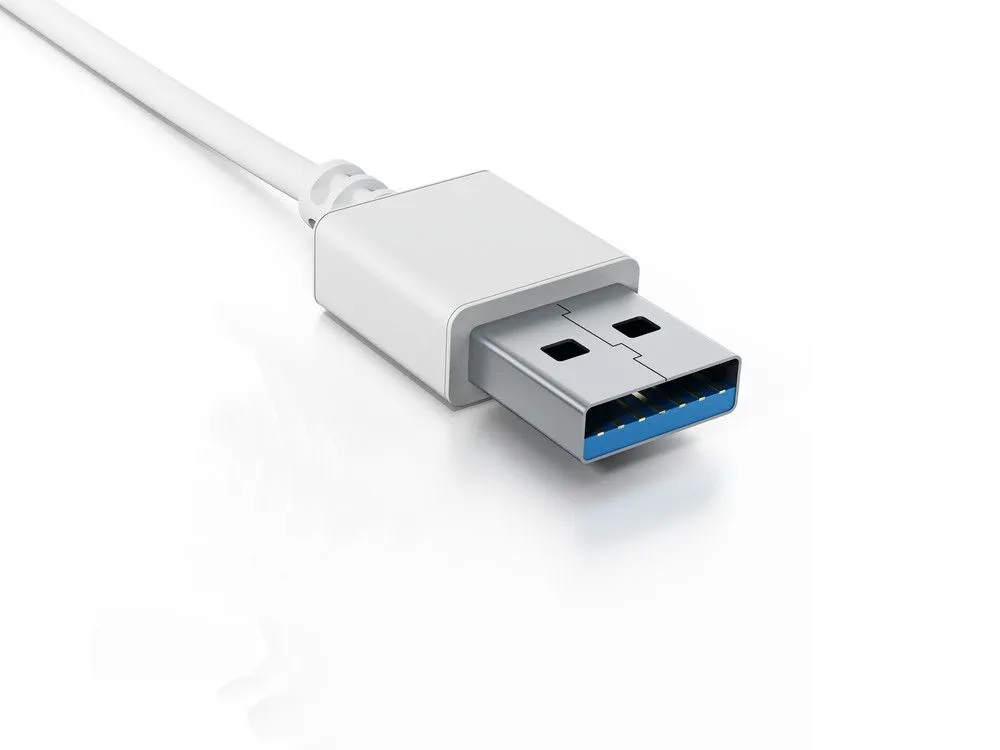
If your laptop or desktop computer has a USB port (where you can plug in USB devices), it will most likely be a USB Type-A port. Note that most modern Apple laptops (Macs) don’t have USB Type-A ports.
2 – USB Type B
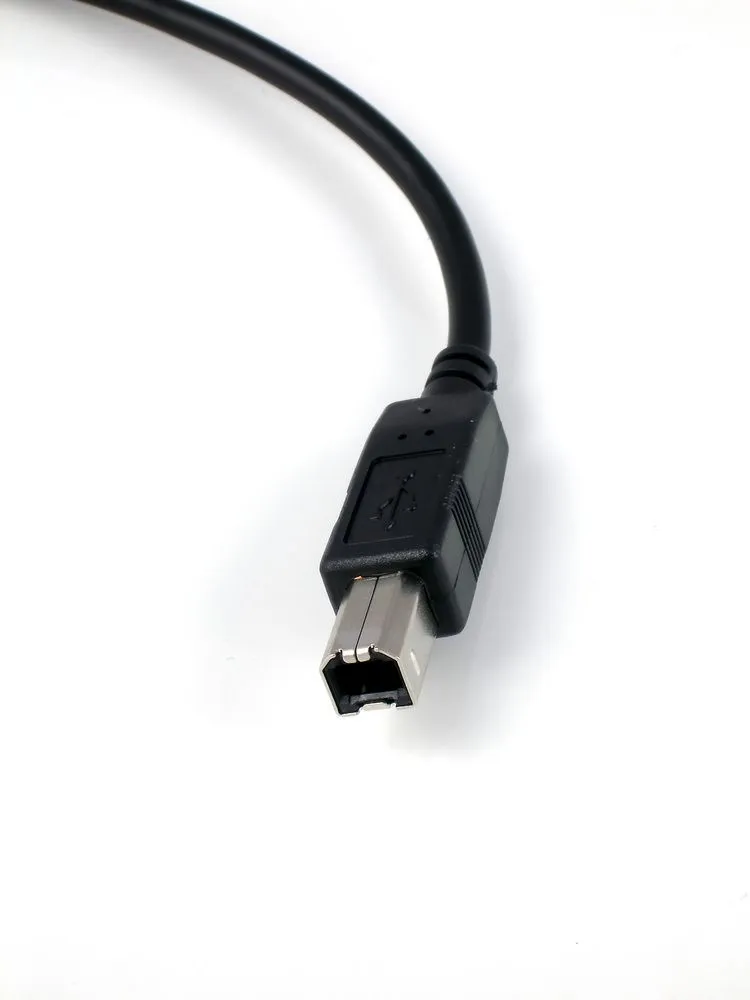
Type B is smaller than Type A and is square-shaped. It is boxier in shape compared to USB Type A. This is relatively less common than Type A, but you would find it on computer components like printers, scanners, external hard drives, etc. It has become less common since the introduction of smaller connectors like micro and mini USB, and the reversible USB Type C.
3 – USB Type C
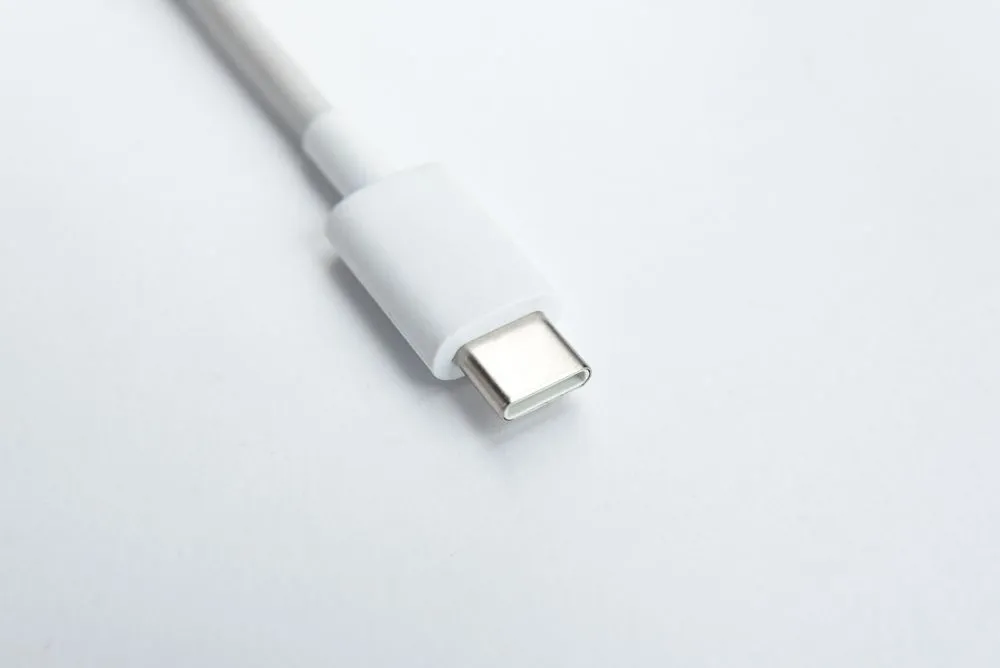
USB Type C is arguably the most popular USB connector. It is also the most recent as it was introduced in 2014. Due to its small size, it easily fits into the smallest peripherals we use today, like smartphones, Bluetooth speakers, etc. It is a standard for connecting and charging devices, known for its compact size and functionality.
One of the many advantages of Type-C over other existing variants is that it allows “reverse plug orientation,” which basically means that you can always plug in your USB cable correctly on the first try. Its plug is made so you can plug it into the slot without thinking about its orientation.
It’s also capable of carrying a lot of power, so it can be used to charge larger devices like laptops, in addition to smaller devices like smartphones and tablets. With USB Power Delivery 3.1, USB-C can deliver up to 240 watts of power — enough to charge gaming laptops and workstations from a single cable. This "Extended Power Range" (EPR) uses voltages up to 48V, compared to the standard 20V, while maintaining safe current levels.
Another cool thing about Type C is that it offers a bi-directional power supply; in other words, you can charge your smartphone from your laptop and vice versa.
Furthermore, USB-C supports the fastest data transfer rates available, including USB4 Version 2.0 (up to 80 Gbps), and can carry a video signal, making it far more versatile than older USB types. Due to these advantages, it’s becoming the standard connection type for many new devices.
USB Type C first made headlines when Apple’s 12-inch MacBook became the first notebook to incorporate Type-C in 2015. Today, USB-C is the standard connector on virtually all modern laptops, including Apple’s MacBook lineup, most Windows laptops, and Chromebooks.
In a landmark regulatory move, the European Union mandated USB Type C as the common charging port for all small and medium electronic devices sold in the EU from December 28, 2024, with laptops required to follow by spring 2026. This regulation is expected to reduce electronic waste by approximately 11,000 metric tons annually and has further accelerated the global adoption of USB-C as the universal standard.
Type C, as mentioned before, is already widely used worldwide. As such, it is almost certain that every electronic device will support Type-C in the years to come.
4 – USB Mini (Mini USB A And Mini USB B)
USB Mini are further divided into two variants: USB Mini A (or Mini USB A) and USB Mini B. These are smaller counterparts of Type A and Type B USB connectors. They are designed for their compact size, which makes them handy for smaller devices.
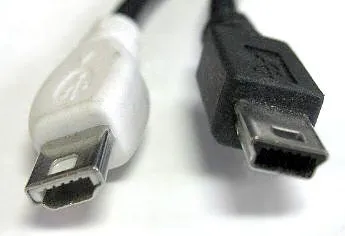
You will likely find USB Mini in portable cameras, game controllers, and some old mobile phones. They typically have 5 pin configurations and are smaller than regular USB types, hence the name ‘mini’. However, they have largely been replaced by the smaller Micro-USB and USB-C connectors.
5 – USB Micro (Micro USB A, Micro USB B, And Micro USB B Superspeed)
Popularly known as Micro USB, this is a very common USB connector you will find in many smartphones these days. They were designed for use with smaller devices, such as smartphones, digital cameras, and other portable devices. The micro USB connector is made to be more durable and stand up to the kind of abuse portable electronics can undergo.
However, with the advent of USB Type C, Micro USBs are slowly getting phased out in newer models of high-end smartphones. But Micro USB is still widely used in budget smartphones and other electronic devices worldwide.
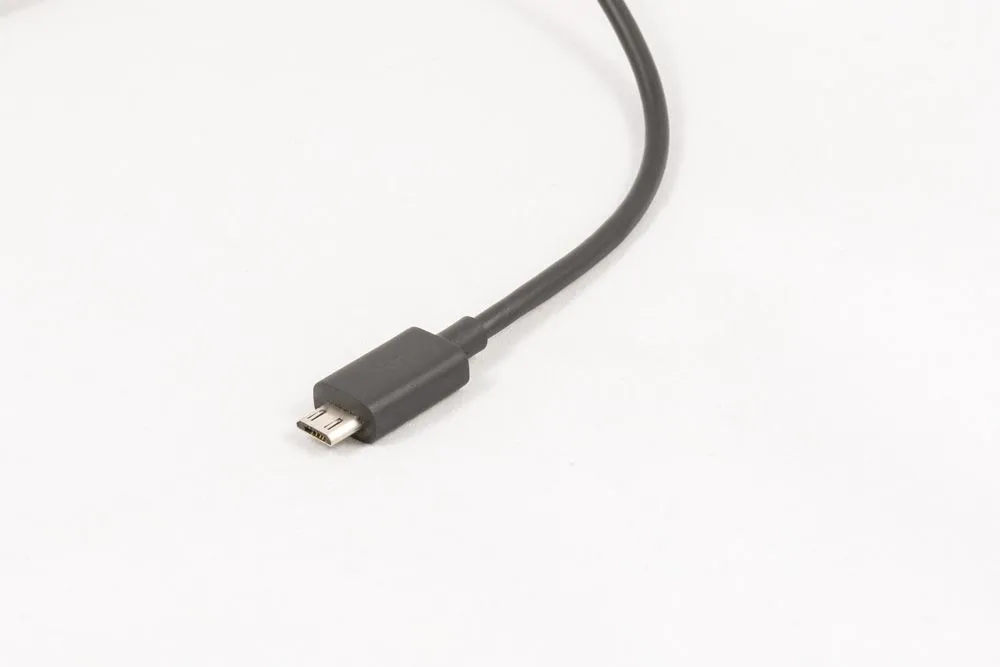
There are two types of micro USB connectors: Micro-A and Micro-B. Both have a similar width and approximately half the height of their mini USB counterparts.
There is one more variant of USB Micro, which is known as USB Micro B Superspeed. As the name suggests, this enables data transfer faster than traditional Micro USB B connectors.
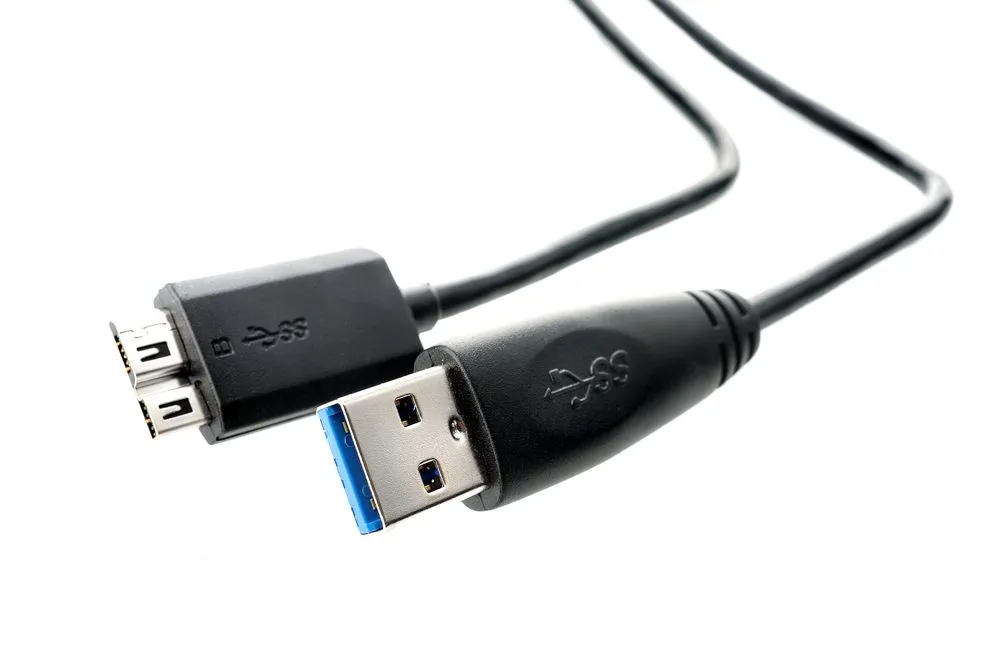
As such, you will mostly find these connectors on external hard drives, where vast amounts of data transfer occur regularly.
6 – Lightning Cable (For Apple Devices)
Older Apple devices, like the iPhone 14 and earlier, use an entirely different kind of USB connector – the Lightning cable. The cable has a thin, rectangular connector on one end and a Type C connector on the other end. However, starting with the iPhone 15 in 2023, Apple transitioned to USB Type C, and all newer iPhones and iPads now use USB-C instead of Lightning. With the iPhone 16 in 2024, Apple continued using USB-C but with an interesting twist: the standard iPhone 16 and 16 Plus are limited to USB 2.0 speeds (480 Mbps), while the iPhone 16 Pro and Pro Max support USB 3 speeds (up to 10 Gbps) — a practical example of how the same USB-C connector can support very different USB versions.
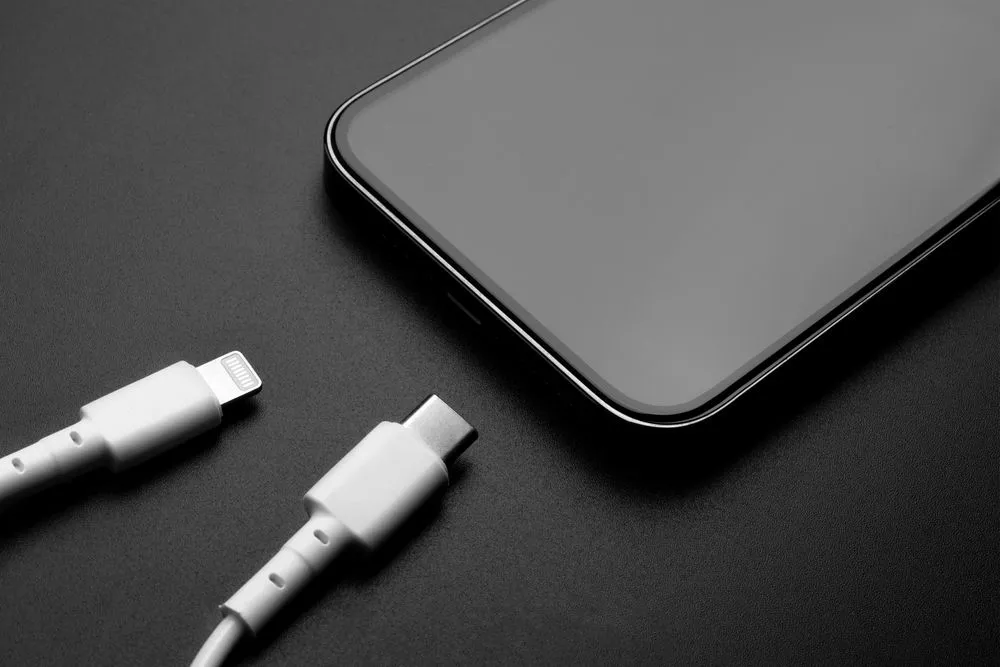
It is also reversible, i.e., it can be plugged in either way without worrying about which is the right side up.
It was introduced in September 2012 as a replacement for the 30-pin dock connector. The Lightning cable is significantly more compact than its predecessor.
As you can imagine, the design of the lightning connector makes it impossible to be used in any other device other than Apple devices, which makes it a nuisance for many users.
These were the main types of USB cables based on their physical design and structure.
Now, let’s look at types of USBs based on their speed and functionality.
Is There A USB Type D Charger?
Short answer: no. There is no USB Type D in the official USB specification. The USB Implementers Forum (USB-IF), the industry body that defines the standard, has only released Types A, B, and C as official connector form factors, along with their Mini and Micro variants. "Type D" simply does not exist in the USB family.
So why do so many people search for a "Type D charger"? A few reasons:
- Some online marketplace listings casually use "Type D" to mean USB-C, on the assumption that since "C" is the newest mainstream connector, there must already be a "D" by now. There isn't.
- "Type D" is sometimes confused with HDMI Type D, which is a real connector but only for video, not for charging phones or transferring data over USB.
- Some sellers brand proprietary or older fast-charging cables as "Type D" even though, electrically, they are just rebranded USB Type-C or Micro-USB cables.
If you are shopping for a "Type D charger" for your phone, you almost certainly want USB Type C. Every new mainstream smartphone sold today, Android or Apple (iPhone 15 and later), charges over USB-C. If your older device used the small flat connector that fits only one way and is roughly the size of a Tic Tac, that is Micro USB, not Type D.
What's The Difference Between A Type B And Type C Charger?
Type B and Type C are easy to mix up by name, but the actual cables look nothing alike and do very different jobs.
Type B is the older, squarer connector with two slightly slanted top corners. You almost never see it as a phone or laptop charger today. Where it still shows up is on older printers, scanners, audio interfaces, and a few external hard drives. A genuine "Type B charger" for a modern phone basically does not exist. If a product description says "Type B," it is usually a data cable for a peripheral, not a wall charger for a phone.
Type C is the small, oval, reversible connector on practically every new phone, tablet, and laptop. It carries data, video, and power over a single port. A USB-C charger that supports USB Power Delivery can fast-charge a phone in under an hour, and the higher-wattage versions are powerful enough to run a laptop.
The practical differences:
- Shape and orientation: Type B is square and only fits one way. Type C is small, oval, and reversible (it plugs in either way).
- Speed: A typical Type B cable carries data at USB 2.0 speeds (480 Mbps). A modern Type C cable on USB4 v2.0 can carry data at up to 80 Gbps, roughly 170 times faster.
- Power: Type B is usually limited to about 7.5 W. Type C with the latest Power Delivery spec can deliver up to 240 W, enough to charge a gaming laptop.
- Use today: Type B is fading out of consumer electronics. Type C is the standard going forward, and the EU now legally requires it on most small electronics.
If someone tells you to bring a "Type B charger" for your phone, they almost certainly mean Type C and have mixed up the letters. Modern phones do not use Type B.
What's The iPhone Charger Called?
If you have an iPhone 14 or earlier, the charging cable is called Lightning. Apple introduced the Lightning connector in 2012 to replace its older 30-pin dock connector, and it stayed exclusive to iPhones, older iPads, AirPods cases, and a handful of other Apple accessories for over a decade. It is small, flat, reversible (you can plug it in either way), and looks a bit like USB-C at first glance but is slightly narrower with connector pins on one side only.
Starting with the iPhone 15 in 2023, Apple switched to USB Type C on all new iPhones, in part to comply with the European Union's common-charger rules. So if you bought an iPhone 15, 16, or anything newer, the cable in the box is USB-C (typically a USB-C to USB-C cable).
The simple version:
- iPhone 14 and earlier: Lightning cable (Apple's proprietary connector)
- iPhone 15 and later: USB Type C (the same connector used by most modern Android phones and laptops)
The full breakdown of how Lightning works, and how Apple's USB-C iPhones differ between the base and Pro models, is in the Lightning Cable section above.
Types Of USB (Based On Their Version And Speed)
There are different versions of USB based on how fast they transfer and receive data between two electronic devices. The main types of USB are as follows:
- USB 1.0
- USB 2.0
- USB 3.0
- USB 4.0
There are some versions between these, like USB 1.1, USB 3.1, and USB 3.2.
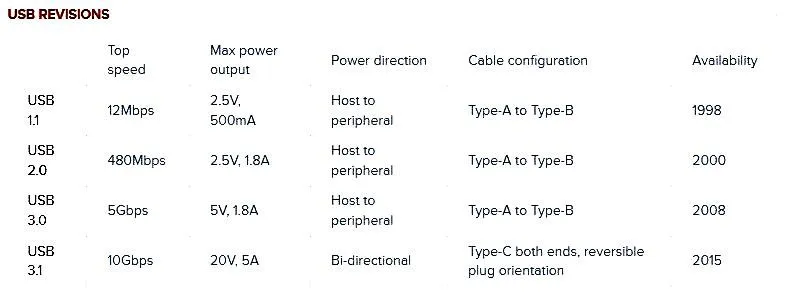
Here’s a table that lists major differences in speeds and performance of some USB versions.
USB 1.0
USB 1.0 was launched in January 1996. It was the first version of the Universal Serial Bus (USB) standard. It specified data transfer rates of 1.5 Mbps (Low Bandwidth) and 12 Mbps (Full Bandwidth).
It ran into some issues, and a newer version, USB 1.1, was launched in September 1998. The top speed of data transfer of USB 1.1 was 12 megabits per second (Mbps).
USB 2.0
USB 2.0 was launched in 2000 and significantly upgraded the maximum data transfer speed to 480 Mbps. In addition to that, it also enabled USB to have a better (and more efficient) current capability to provide charging to electronic devices like smartphones.
USB 3.0
USB 3.0 was launched in November 2008 and could handle a top speed of 5 Gbps. This was the third major update to USB standards (the previous updates were versions USB 1.0 and USB 2.0).
However, further updates were released over the next couple of years, which triggered the renaming of USB 3.0 (i.e., the latest USB version of that time) to USB 3.1 Gen 1.
So, USB 3.0 and USB 3.1 Gen 1 are essentially the same and have a top data transfer speed of 5 Gbps. Then, in July 2013, USB 3.1 Gen 2 was released, with its top data transfer speed at 10 Gbps.
Then, in September 2017, USB 3.2 was released. There are four versions of USB 3.2: Gen 1×1, Gen 1×2, Gen 2×1, and Gen 2×2.
USB 3.2 Gen 2×2 is quite popular nowadays and offers a top speed of 20 Gbps using 2-lane operation (hence the name 2×2). This version is only compatible with USB Type C design. Since it offers considerably faster data transfer and charging speeds, most modern smartphones and even some laptops support this USB version.
To address the confusion caused by repeated renamings, the USB Implementers Forum (USB-IF) introduced simplified consumer-facing branding in 2022-2023. Instead of version numbers and generation names, USB speeds are now marketed simply as USB 5Gbps, USB 10Gbps, USB 20Gbps, and USB 40Gbps. So if you see "USB 10Gbps" on a product, you know exactly what speed to expect — no need to decode "USB 3.2 Gen 2x1."
USB 4.0
The latest and most modern USB version is USB 4. It was launched in 2019 and offered a formidable upgrade above its previous versions. It only uses Type C connectors and offers a top speed of 40 Gbps. An updated specification, USB4 Version 2.0, was released in 2022 and doubles the maximum speed to 80 Gbps (and up to 120 Gbps in asymmetric mode). While the specification was finalized in 2022, actual devices supporting 80 Gbps speeds are only beginning to reach the market in 2026, with major controller chip manufacturers like ASMedia expected to ship USB4 v2 controllers by late 2026.
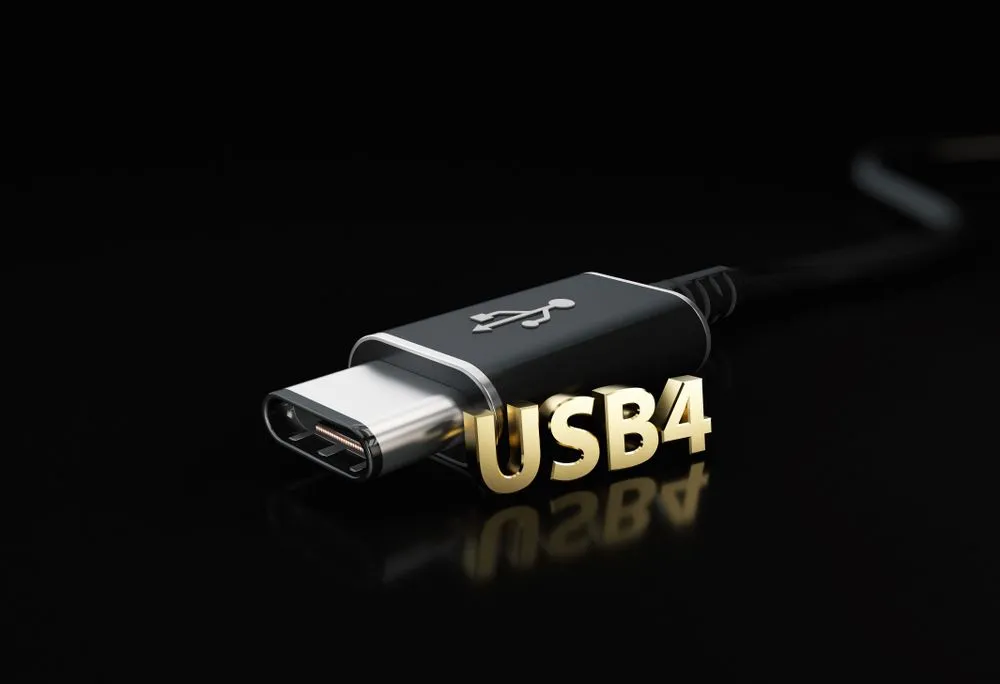
USB 4 and Type C connectors look almost identical, so, naturally, many users confuse the two and interchange the terms “Type C” and “USB 4”. Note that USB Type C refers to the physical design of USB connectors. In contrast, USB 4 denotes the USB version. USB 4 has nothing to do with the shape of the connector; it just indicates the performance and speed of the USB version.
In a nutshell, USB connectors are classified based on their physical design – Type A, B, C, and so on, and their speed and functionality – USB 1.0, USB 2.0, USB 3.0, and USB 4.0.
References (click to expand)
- USB Type-C® Cable and Connector Specification. The USB Implementers Forum
- USB-C Protocol - ecee.colorado.edu:80
- What you need to know about USB-C | IT Support Blog. The University of Texas at Austin
- A Rogers. AN1953 - Microchip Technology. Microchip Technology Inc.
- USB Documents and Specifications. USB Implementers Forum
- Son, K., Choi, S., Jung, D. H., Kim, K., Park, G., Lho, D., … Choi, S. (2019, October). Design and Analysis of a 10 Gbps USB 3.2 Gen 2 Type-C Connector for TV Set-Top Box. 2019 IEEE 28th Conference on Electrical Performance of Electronic Packaging and Systems (EPEPS). IEEE.
- EU common charger rules: Power all your devices with a single charger. European Commission.
- USB4 - Wikipedia.
- What Is 240W USB Extended Power Range (EPR)? Plugable Technologies.
- iPhone 16 has a USB-C port, here's what you can do with it. 9to5Mac.
- About USB-IF. USB Implementers Forum.
- iPhone 15 Technical Specifications (USB-C). Apple Support.
- iPhone 14 Technical Specifications (Lightning connector). Apple Support.
- A Common Charging Solution For All. European Commission.