Transfer rates between a USB stick and a PC vary because a file is only as fast as the slowest step in the chain. A cheap flash drive writes far slower than it reads, the USB version sets a hard speed ceiling (USB 2.0 tops out near 35 MB/s), and copying many small files adds per-file overhead that one large file avoids.
It is obvious that the development of the Personal Computer (PC) has accelerated the advancement of mankind. The enormous amounts of data being produced has also led to the rise of storage devices. After all, the creation of huge amounts of data would only be beneficial if it could be stored and exchanged with others.
Additionally, this spurred the development of data storage and transfer technologies. Since these technologies have evolved continuously, many parameters, such as speed of data transfer and amount of data stored, have also changed. When two devices with different technologies are connected, differences in transfer speeds arise.

A Brief Overview Of Data Storage Technologies
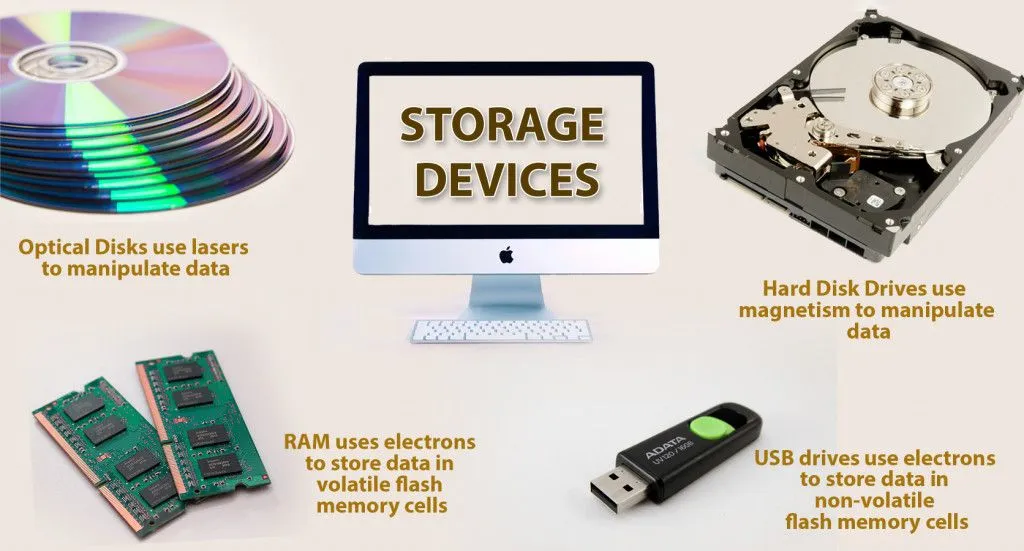
The oldest data storage devices were punch-cards, which gave way to magnetic tapes and semiconductor devices. Most storage devices can be classified into the following categories: Hard Disk Drives (HDDs), Solid State Drives (SSDs) and Optical Disks. HDDs and SSDs are the most widely used storage devices.
Most desktop PCs use magnetic storage drives to store data, while pendrives, memory cards, and external hard drives use flash memory.
To answer the question, let’s first understand the basics about each device.
1) HDDs: Magnetic Storage Technology
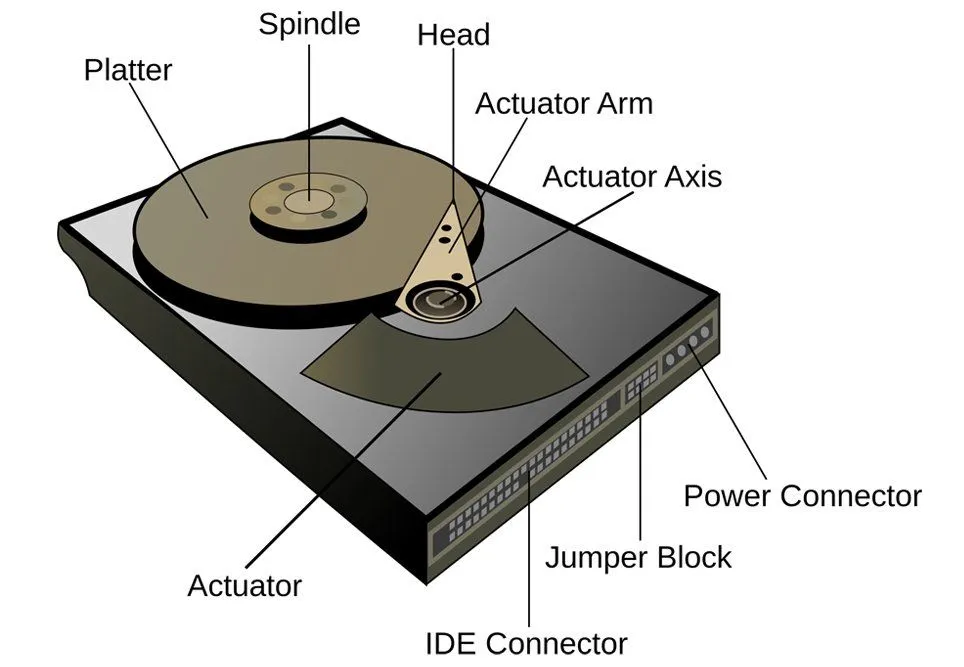
HDDs store data in magnetic regions on a disk-shaped ferromagnet called a ‘platter’. It rotates at thousands of rounds per minute. The platter is connected to two tiny electromagnets called ‘heads’. One head reads (R) the stored data (detects the orientation of the magnetic field) and the other head writes (W) data (changes the orientation of the magnetic field) on the platter.
Both the R/W heads are connected to a common arm called the ‘actuator’. Reading and writing data requires mechanical motion of the actuator arm over the platter. The sensors on the heads manipulate the magnetic field on the platter below them.
2) Universal Serial Bus (USB) Flash Drives: Flash Storage
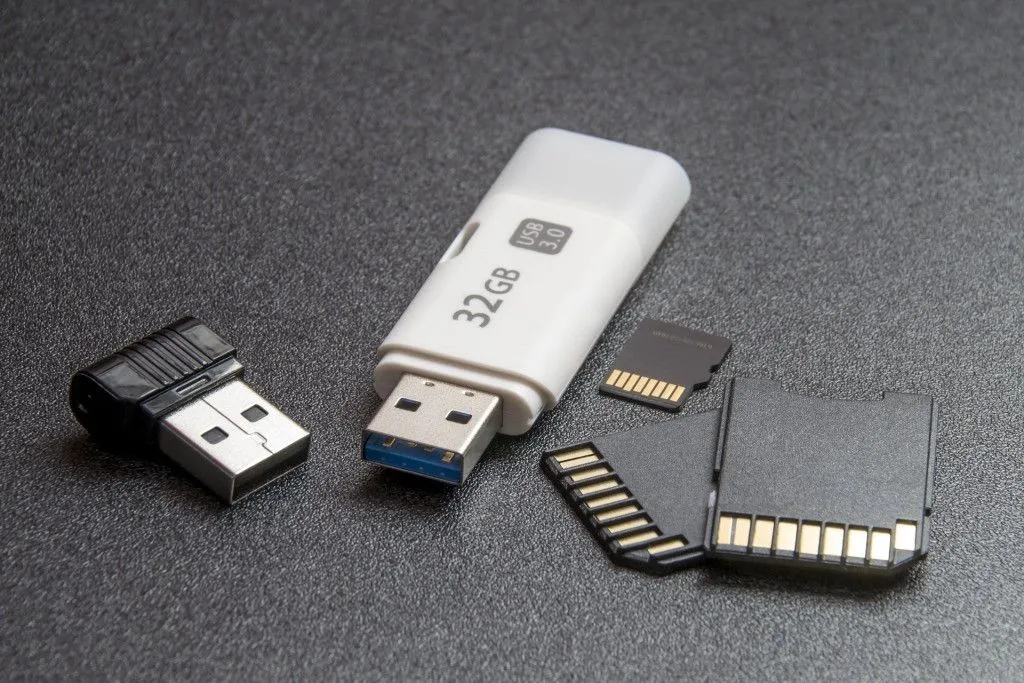
USB drives use Flash Memory. Each memory cell consists of one Floating-Gate Metal-Oxide Semiconductor Field-Effect Transistor (FGMOS). This transistor has terminals called the Source, Drain and (control) Gate, which can be connected directly to a voltage source.
In addition, there is another Gate called a Floating Gate (FG), which can’t be connected directly to a power source. Voltages are applied to the Source, Sink and Gate in such a manner that the electron concentration on the Floating Gate (FG) can be manipulated.
If FG contains electrons, then the bit is assigned a value of 0. If FG lacks electrons, then the bit is assigned a value of 1. The flow of electrons is near-instantaneous, with no moving parts involved.
One thing worth clearing up: a USB stick and a Solid State Drive (SSD) use the same family of flash memory, but they are not the same product. An SSD packs many flash chips that the drive reads and writes in parallel, along with a powerful controller and a chunk of fast cache. A typical pen drive has a single, cheaper flash chip and a bare-bones controller, so it is far slower, especially when writing. That difference is at the heart of why your copies crawl.
HDD Vs SSD: Speed Of Data Transfer Between Devices
Having read about data storage and the Read/Write mechanism of both technologies, let’s compare the two. The golden rule is simple: a file transfer can only move as fast as the slowest step in the chain.
| HDD | SSD |
| HDDs have a slower R/W time compared to SSDs because of the physical motion of the Actuator arm required to position the R/W Heads (Seek Time) to manipulate the bits on the Platter. | Since SSDs lack moving parts and rely on electron motion from and to the FG, their speed is faster than HDDs. |
Also, for a given device, Read (R) speed is generally greater than Write (W) speed.
Thus, it takes less time to read data from a device than to write data on the same device. The speed of data transfer in a system is limited by the slowest process in the link. Every device must perform two operations: reading data at the source and writing data at the destination.
Suppose that two devices, A and B, are connected for a file to be transferred between them. The main variables at play are:
- Read speed (R) of A
- Write speed (W) of B
The data present in A is read by the computer at an R speed of A and then written into B at the W speed of B. The following cases arise:
CASE 1: If R speed A > W speed of B, then the speed of file transfer is limited by the W speed of B.
CASE 2: If R speed A < W speed B, then the speed of file transfer is limited by the R speed of A.
| CASE 1 | CASE 2 |
| Assume that device A is a HDD and device B is a SSD. | Assume that device A is a SSD and device B is a HDD. |
| As R speed of HDD<W speed of SSD, rate of data transfer is limited by the R speed of HDD. | As R speed SSD>W speed of HDD, rate of data transfer is limited by the W speed of HDD. |
The USB Port Itself Sets A Speed Limit
Even with a fast drive on both ends, the USB connector is a gate that data has to squeeze through, and that gate has a fixed width. Here a small but important detail trips a lot of people up: USB speeds are quoted in bits per second, while file sizes and copy dialogs are in bytes per second. There are 8 bits in a byte, so you divide the bit figure by 8 (and a bit more, for protocol overhead) to get the real-world transfer rate.
According to the USB Implementers Forum, the headline numbers are:
- USB 2.0: 480 megabits per second (Mbps), which is 60 MB/s in theory but closer to 35 MB/s in practice.
- USB 3.0 (now USB 3.2 Gen 1): 5 gigabits per second (Gbps). After the 8b/10b encoding it uses, the usable ceiling is about 500 MB/s, with real drives landing around 300–450 MB/s.
- USB 3.1 / 3.2 Gen 2: 10 Gbps, or roughly 1,000–1,250 MB/s in theory.
- USB 3.2 Gen 2x2: 20 Gbps, by running two 10 Gbps lanes together.
This is why plugging a quick drive into an old USB 2.0 port feels sluggish: the file is being throttled at the port, long before the flash chips break a sweat. A chain is only as fast as its narrowest link, and an aging blue (or black) port is often that link.
Why Many Small Files Crawl And One Big File Flies
You may have noticed something odd: copying a single 4 GB movie finishes in a flash, but copying a 4 GB folder of thousands of tiny documents seems to take forever, even though the total size is identical. The drive hasn't suddenly gotten slower. The difference is overhead.
Every single file you copy is more than just its data. The operating system has to open the source file, create a new entry on the destination, update the file table (the index the drive keeps of what lives where), and write timestamps and permissions, then close everything. For one big file, that bookkeeping happens once. For ten thousand small files, it happens ten thousand times, and those little stop-start operations add up far faster than the data itself does.
Flash drives have a second trick that fools people. Many drives set aside a small, fast slice of memory as a cache (often a faster single-bit mode of the same flash), and writes pour into it at full speed. The progress bar races ahead and you think you're nearly done. Then the cache fills, the drive has to write straight to its slower native flash, and the speed can drop by more than half. That sudden stall partway through a large copy is completely normal, not a sign your drive is failing.
The file system you use plays a part too. Smaller USB sticks usually ship formatted as FAT32, which is widely compatible but refuses to store any single file larger than 4 GB. Formatting the drive as exFAT removes that ceiling and generally handles large modern files more gracefully.
Conclusion
From the cases above, the slowest device sets the pace. With a real SSD on one side that is often the hard drive, but a cheap USB stick flips the picture. A typical hard drive writes at roughly 80–160 MB/s, while a budget USB 2.0 flash drive may write at only 3–10 MB/s. So when you drag a file from your PC onto a pen drive, it is almost always the flash drive's slow write speed (and the USB port's own limit) that holds you back, not the hard drive.
Also, given that the W speed of HDD is slower than its own R speed, writing data into a HDD takes more time than reading data on it.

This is the reason behind the seeming eternity required to copy your favorite game from a USB stick onto your PC!
References (click to expand)
- Memory & Storage | Timeline of Computer History. The Computer History Museum
- How a Hard Drive Works. The Computer Science Department at Stanford University in Stanford, California
- SuperSpeed USB. USB Implementers Forum (USB-IF)
- USB in Windows - FAQ. Microsoft Learn
- COEN 180 - www.cse.scu.edu
- HDD UserBenchmarks - 1015 Hard Drives Compared. hdd.userbenchmark.com
- How fast should an external drive be?. Seagate Technology Holdings plc
- exFAT file system specification. Microsoft Learn
- What is a floating gate transistor?. TechTarget